


How-to guide
How to set up a front desk kiosk in Clovo
Turn an iPad into a self-serve Clovo kiosk for member check-in and a polished studio overview for walk-ins at reception.
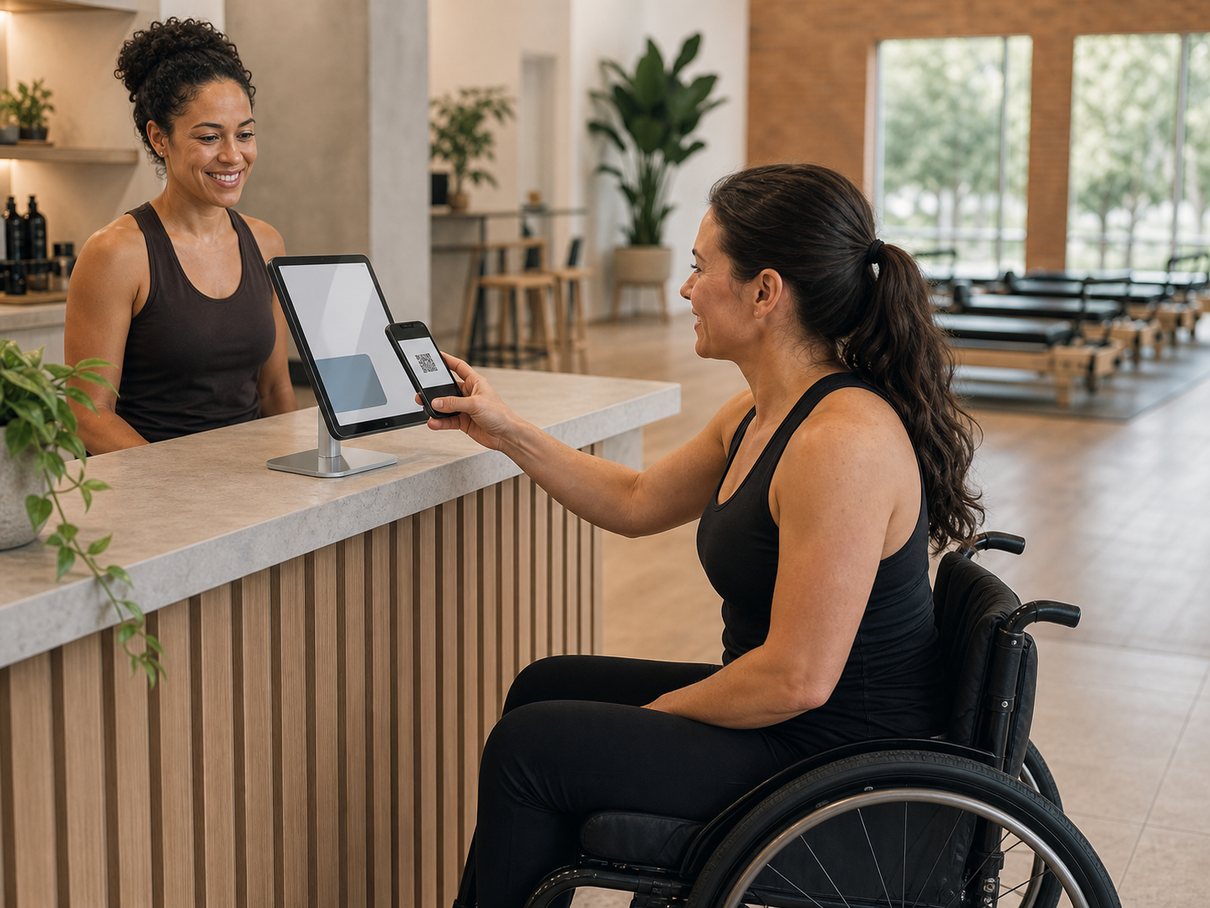
A front-desk kiosk is one of the highest-leverage pieces of studio setup because it does two jobs at once: it lets members check themselves in, and it gives walk-ins something to explore while your staff are busy. A single iPad at reception takes pressure off the front desk during the pre-class rush and quietly sells your studio between conversations.
Clovo Kiosk runs inside the Clovo app on an iPad — or an iPhone if you need a backup — in portrait or landscape. This guide covers preparing the device, switching it into kiosk mode, getting members into the scan habit, and using the screen as a digital showroom.
Before you start
- Have an iPad ready where possible, with a stable internet connection. An iPhone works as a backup.
- Enable camera access on the device — check-in works by scanning member QR codes, so the camera has to be available.
- Sign in with an owner or staff account, since kiosk mode is a staff feature.
- It helps to customise your branded apps first, so the kiosk and member passes carry your studio's look.
Set up the kiosk, step by step
-
Prepare the device
Use an iPad where you can — the larger screen is easier for members to scan against and more inviting for walk-ins to browse. Place it at reception or on a stand at a comfortable height, and confirm it has a stable internet connection.
- Position it so a member can hold their phone up to the camera without leaning over the counter.
- Keep it on power if it lives at the desk all day.
-
Sign in and enable the camera
Open the Clovo app and sign in with an owner or staff account. Make sure camera access is enabled for the app — without it the kiosk cannot read member QR codes and check-in will not work.
-
Open Self-serve Kiosk
In the Clovo app, open the admin panel and tap Self-serve Kiosk. The device switches into full-screen kiosk mode and is immediately ready to scan member passes.
-
Test a check-in scan
Before you rely on it, run one scan yourself. Open a member's Self Check-In pass on a second phone, present the QR code to the kiosk, and watch the result card appear so you know the camera and connection are working.
-
Leave it ready for walk-ins
Between check-ins the kiosk doubles as a Studio Overview, so anyone who wanders in can browse what you offer. Leave the iPad on and in kiosk mode and it handles both jobs without anyone tending it.
How members check themselves in
The flow is deliberately simple: a member opens their Self Check-In pass in the Clovo app and presents the QR code to the kiosk. On days when they have a booking, the app prompts them to open the pass straight from their account screen, so they are not hunting for it at the door. Self-serve check-in works for same-day eligible bookings.
After each scan, the kiosk shows a result card so your staff can see at a glance whether anything needs attention — without manually searching the booking. The card tells you whether the member was:
- Checked in — done, nothing more to do.
- Already checked in — they scanned twice, so no action needed.
- Partly complete — some but not all of their eligible bookings were checked in.
- Failed — the scan could not be matched, so a staff member should step in.
Tip
Spend the first week gently pointing members to the kiosk as they arrive. Once the habit forms, most check-ins happen without your team touching the booking at all, freeing the desk for new and walk-in clients.
Turn the screen into a digital showroom
When no one is checking in, the kiosk is a quiet salesperson. Walk-ins can explore your Studio Overview — class types, instructors, memberships, packs, shop items and the weekly schedule — all on the front-desk screen while your staff are busy. It is a low-pressure way for a curious passer-by to see what you offer and find a reason to book.
If you sell merchandise, make sure your Member Shop products are set up so they appear here too. A polished overview turns a spare iPad into part of your sales floor.
Common questions
Do I need an iPad, or will an iPhone do?
An iPad is best because the bigger screen is easier to scan against and nicer for walk-ins to browse. An iPhone works as a backup, and the kiosk runs in portrait or landscape on either.
Why isn't the kiosk reading member QR codes?
The most common cause is camera access. Check that the camera is enabled for the Clovo app on the device, since check-in works entirely by scanning member passes.
Can a member check in for a class on a different day?
Self-serve check-in is for same-day eligible bookings. On days a member has a booking, the app prompts them to open their Self Check-In pass from their account screen so it is ready at the door.
What to remember
- The kiosk runs in the Clovo app on an iPad or iPhone, in portrait or landscape, and does both check-in and walk-in discovery.
- Camera access is essential and self-serve check-in works for same-day eligible bookings; the result card tells staff when to step in.
- Between scans the Studio Overview turns the front-desk screen into a sales aid for walk-ins.
Ready to try it in your studio?
Run bookings, payments and client apps from one place.
Clovo gives boutique fitness studios the operating system behind the tutorial: dashboard setup, branded apps, payments, landing pages and client communication.