


Introducing Regulars: automatic weekly bookings

Every studio has a class where you could almost write the attendance list from memory. The same Tuesday-morning reformer crew. The same Saturday regulars. The same familiar faces who organise part of their week around one particular hour.
Until now, those clients still had to wait for each new class opening and book the same spot again. Or your team had to do it for them. Miss the window and a long-time regular could lose their usual place to somebody else.
Regulars turns that weekly ritual into a standing reservation. Add a client to a saved weekly schedule once, choose the membership Clovo should use, and they can be booked automatically whenever a new opening is created.
The same spot, without the weekly scramble
Regulars is for the clients who attend the same class on the same schedule, week after week. It keeps their routine intact and removes a small but persistent bit of admin from your studio.
There is no new timetable to manage and nothing for a client to switch on. The standing reservation lives against your existing weekly schedule in the Clovo dashboard. When that schedule creates its next opening, Clovo works through the regulars list and attempts each booking automatically.
Their weekly class. Already taken care of.
Add your regulars once. Clovo attempts their bookings as each new opening is created.

Capacity and membership eligibility still apply to every booking. Applies to newly created openings. Existing openings and bookings stay unchanged.
Set it once, then let Clovo repeat it
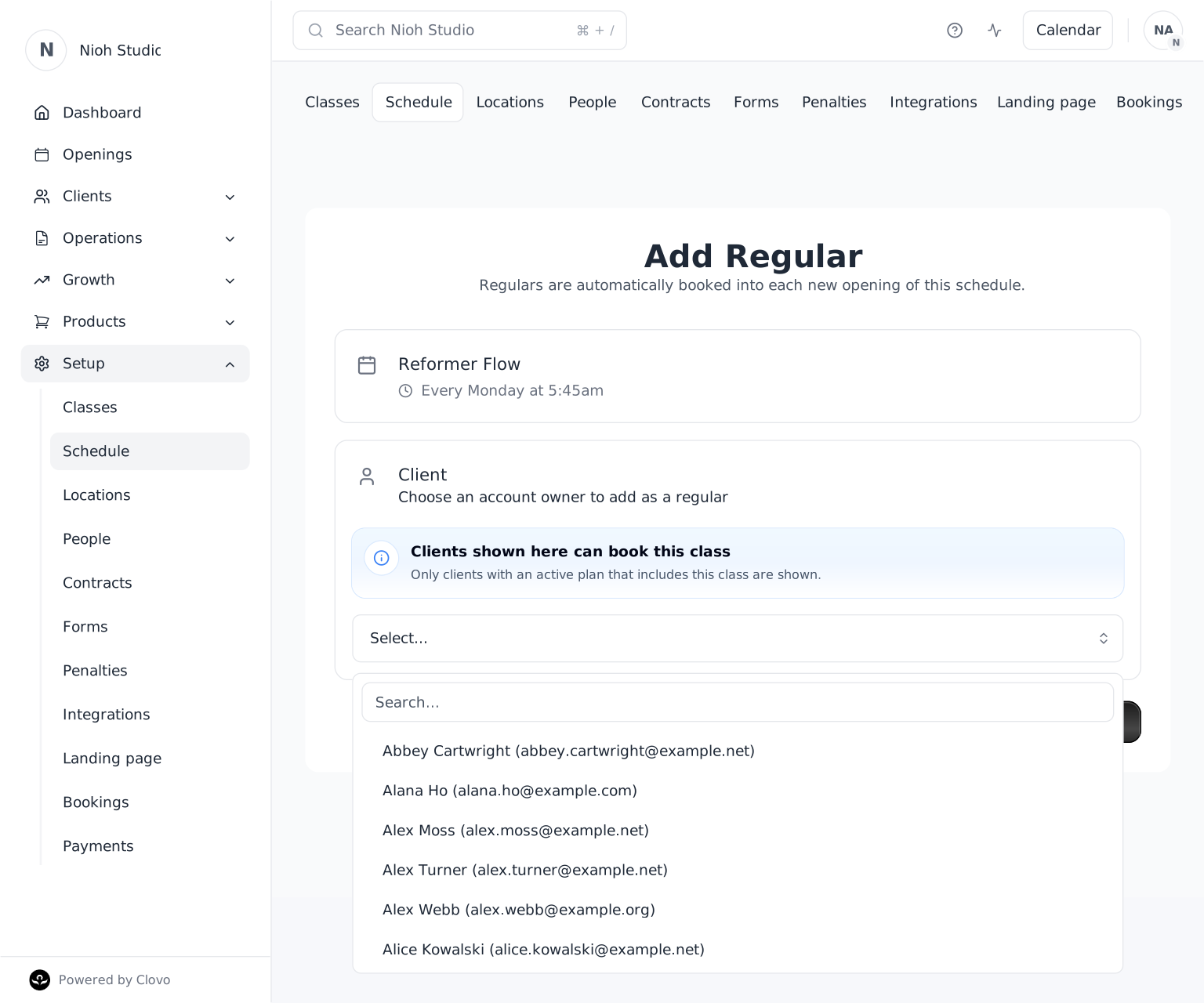
Adding a regular takes only a few steps:
- Open a saved, active weekly schedule and select Add regular.
- Choose the client. Clovo only shows account owners with an active plan that covers that class.
- Select the membership that should pay for their future bookings.
- Confirm, and Clovo takes care of each new opening from there.
The membership you choose stays attached to the standing reservation. If that client changes plans later, remove them and add them again using the new membership. Regulars only works on future openings, so any classes already on the calendar stay exactly as they are.
First access, with the usual safeguards
A regular is considered before the normal priority booking window, which gives them first access to their usual spot. It is a head start, not a way around the rules.
Every automatic booking still goes through the same checks as any other booking: class capacity, membership status, pauses, expiry dates and available credits. If the client has already booked themselves, Clovo simply moves on rather than creating a duplicate.
If one booking cannot go ahead, the rest of the class is unaffected. The attempt is recorded as a failed booking, the client stays on the regulars list, and Clovo tries again when the following opening is created.
Easy for staff to follow
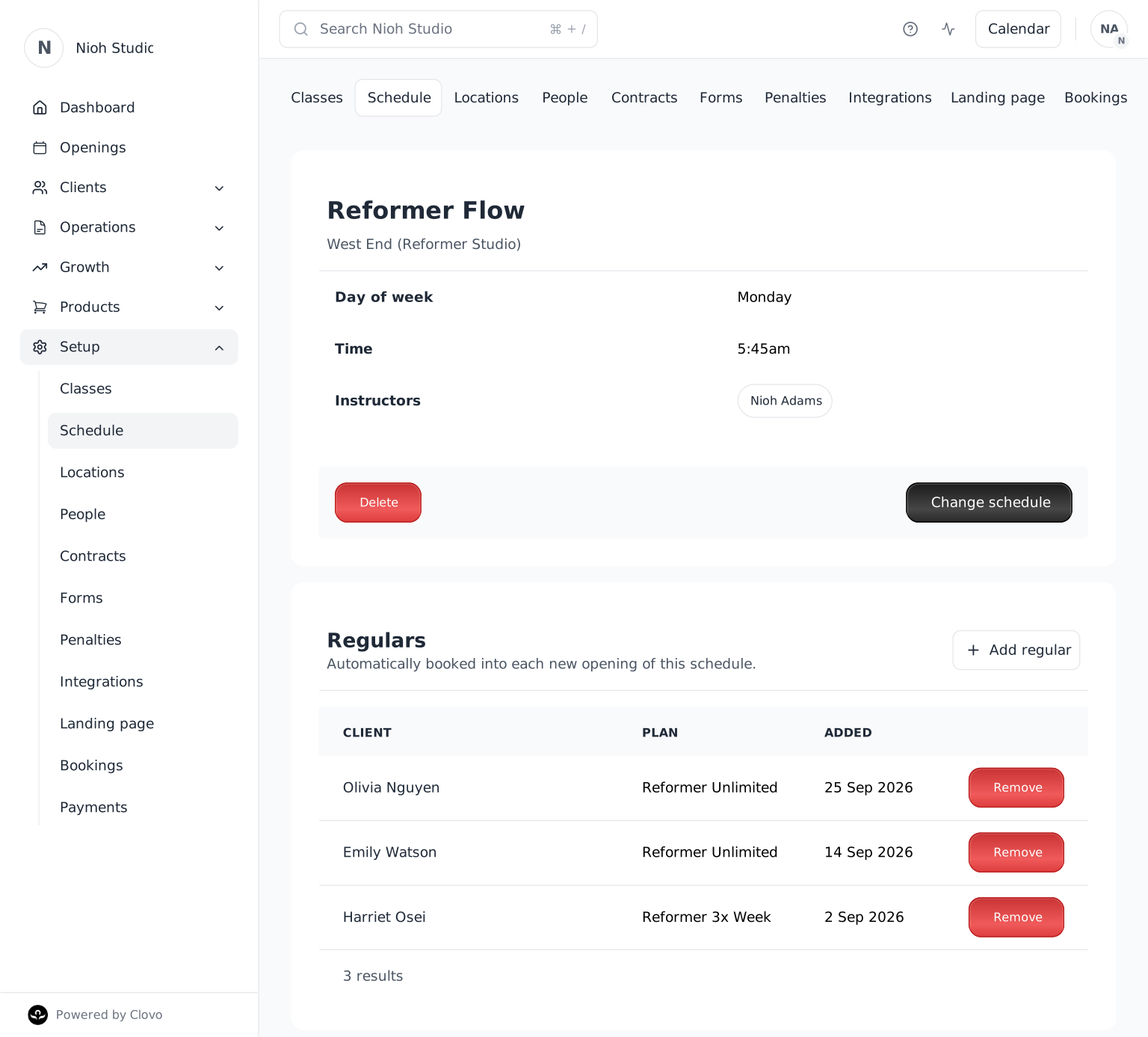
Your schedule shows each regular, the membership attached to their reservation and when they were added. Successful bookings carry a Regular badge in your booking tables, so staff can see how the place was secured at a glance.
The activity feed stays tidy too. Instead of one feed item for every person booked, Clovo adds a single Regulars Booked entry for the opening. Adding and removing people has its own clear feed entries, and any failed attempt remains available to inspect in detail.
Familiar for clients
For your clients, an automatic booking feels just like an ordinary one. They receive the usual confirmation email, and any after-booking message you have set for the class is sent as normal.
Adding or removing someone as a regular does not send a separate notification, leaving you in control of that conversation. Removing a regular stops future automatic bookings but does not cancel anything already booked.
A small feature that protects big habits
Consistency is part of what makes a boutique studio feel like a community. Clients get to know their instructor, the people on the reformer beside them and the rhythm of showing up at the same time each week.
Regulars supports that habit without turning it into another recurring task for your staff. The people who keep coming back can keep their place, while your team gets a little more time for the work that needs a human.
Ready when your schedule is
Regulars is available now for Clovo studios. Sign in to your dashboard, open a saved weekly class schedule and select Add regular to create your first standing reservation.
For the full setup steps, membership rules and troubleshooting details, read how to automatically book regular clients into new openings in Clovo Support.