


Introducing Clovo Kiosk: Self-Serve Check-In and a Digital Showroom for Your Studio
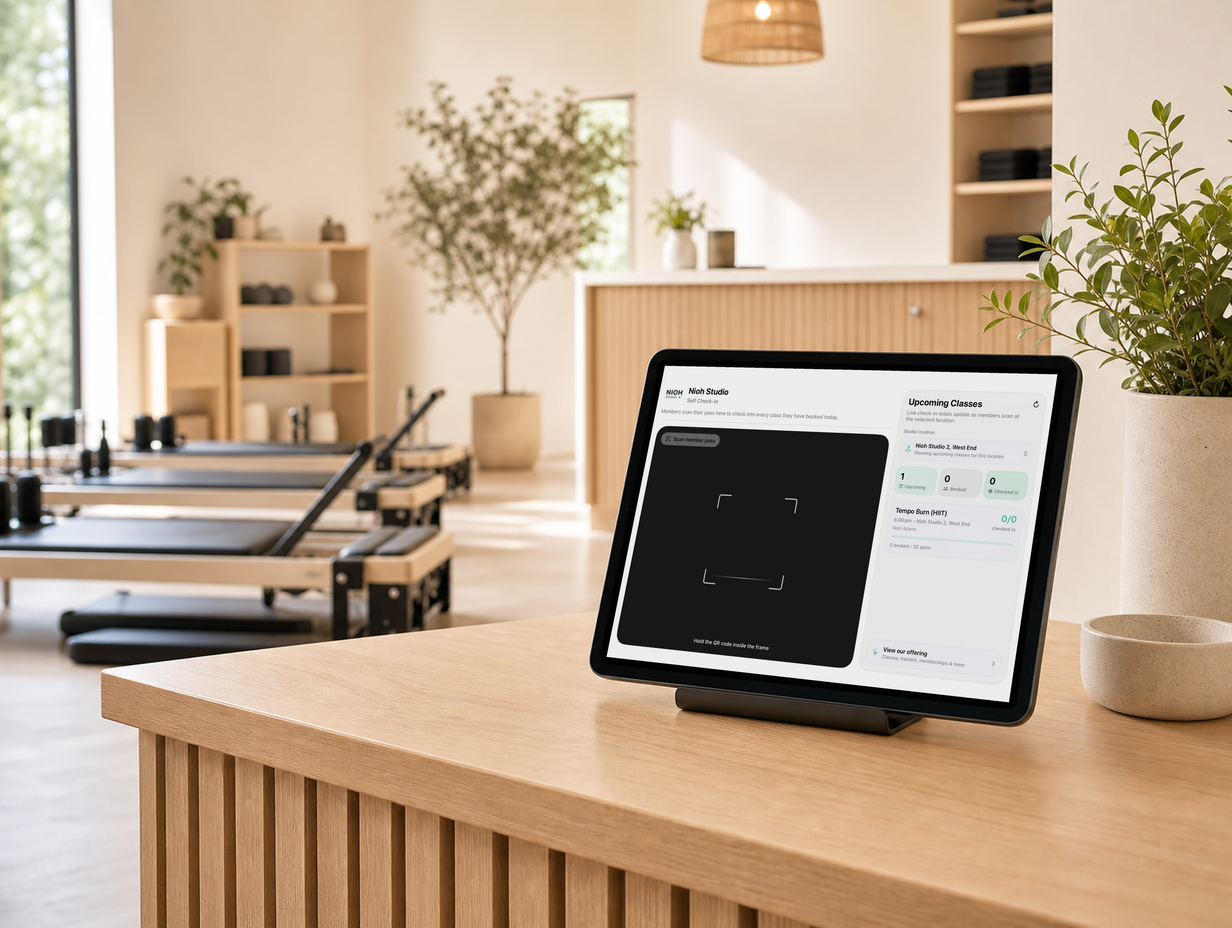
We're excited to introduce Clovo Kiosk – a self-serve check-in station and digital studio showroom, built right into the Clovo app. Mount an iPad in your lobby and it handles two things that have always needed someone standing at the front desk: walk-in enquiries and member check-ins.
There are no new apps to download, no separate subscriptions, and no special hardware beyond an iPad (or an iPhone if that's what you have on hand). Kiosk lives inside the Clovo app you already use every day.
Why We Built It
Every studio has the same two pressure points. First: a member walks through the door for class and needs to be checked in – straightforward, but it ties up a staff member right when they should be elsewhere. Second: someone walks in off the street to find out what you offer, and if the instructor is mid-class or the receptionist is on the phone, that conversation either gets rushed or doesn't happen at all.
We wanted to solve both without requiring extra staff or complicated setup. Kiosk runs on the iPad sitting at your front desk and handles both jobs automatically.
Self-Serve Check-In
When a member arrives for class, they open the Clovo app on their phone and tap through to their Self Check-In pass – a QR code that the app keeps ready whenever they have a booking that day. They hold it up to the iPad camera, and Kiosk automatically checks them into all of their eligible bookings. Done. No waiting, no staff needed.
The kiosk screen shows the upcoming class schedule at the location and a running tally of check-in counts for the day, so there's always something useful displayed even between scans. Members are automatically prompted to open their check-in pass on any day they have bookings, so for most regulars it becomes a two-second tap-and-scan habit.
Once the iPad is in Kiosk mode, it's fully locked into that screen. Members can't accidentally navigate into admin areas of the app, and the device can't be used as a general app while running as a kiosk. If you run multiple locations, you can switch the studio location filter directly from the kiosk screen.
Studio Overview: Your Digital Showroom
The second mode is Studio Overview – a full-screen, branded display of everything your studio offers. From the Kiosk home screen, anyone can tap "View our offering" to browse your class types and descriptions, instructor profiles, membership options, packs, the member shop, and your weekly schedule. It's all presented in a clean layout with your studio name and logo.
For walk-ins, it gives them something useful to explore while they wait – and answers the questions most people have before they commit: What classes do you run? Who are the instructors? What does it cost? What's on this week?
For staff, it works as a guided sales tool. Instead of talking through every option from memory, you can walk a potential new member through the whole studio using the Kiosk screen – classes, trainers, memberships, pricing, schedule. It makes for a more confident, consistent conversation than most front desks manage, and it takes no extra preparation.
Getting Started
To open Kiosk, sign into the Clovo app as an owner or staff member, open the admin panel, and tap Self-serve Kiosk. The device switches into full-screen kiosk mode and you'll be prompted to allow camera access on first launch. That's it – the whole setup takes about 15 minutes.
Once it's running, the Kiosk sits on your front desk or on a stand and runs without any ongoing maintenance. You can return to the admin panel at any time to adjust the location filter or exit kiosk mode entirely.
Works on iPad and iPhone
Kiosk is designed for an iPad and looks its best on the larger screen – it's what most studios use at reception. That said, it also runs on iPhone if you need a backup option or want to try it before committing to a dedicated device. Both portrait and landscape orientations are supported, so you can set it up however works best for your lobby.
For full setup instructions and troubleshooting, visit the Kiosk support documentation. Clovo Kiosk is available now for all studios. Log in to your studio account, open the admin panel, and tap Self-serve Kiosk to get started.