Registrations
Measure completed sign-ups
Use the registration conversion destination to report completed account registrations.

 Branded Booking Apps
Let clients book, pay and join waitlists in your branded app.
Branded Booking Apps
Let clients book, pay and join waitlists in your branded app.
 Studio Management Dashboard
Manage schedules, clients, payments and more in one place.
Studio Management Dashboard
Manage schedules, clients, payments and more in one place.
 Landing Pages
Showcase classes and pricing on your own .clovo.app page.
Landing Pages
Showcase classes and pricing on your own .clovo.app page.
 Member Shop
Sell studio merchandise through the app your members use.
Member Shop
Sell studio merchandise through the app your members use.
 Client Records
Keep progress notes, forms and agreements securely together.
Client Records
Keep progress notes, forms and agreements securely together.
 Integrated Admin App
Manage your studio from the Clovo app, wherever you are.
Integrated Admin App
Manage your studio from the Clovo app, wherever you are.
 Website Add-ons
Add live schedules and ways to buy to your existing website.
Website Add-ons
Add live schedules and ways to buy to your existing website.
 Retention
Spot clients drifting away and reconnect before they leave.
Retention
Spot clients drifting away and reconnect before they leave.
 Clovo Kiosk
Turn a spare iPad into self check-in and a studio showcase.
Clovo Kiosk
Turn a spare iPad into self check-in and a studio showcase.
 Growth
Grow your studio with reporting, offers, reviews and referrals.
Growth
Grow your studio with reporting, offers, reviews and referrals.
See which campaigns lead to completed registrations and purchases.
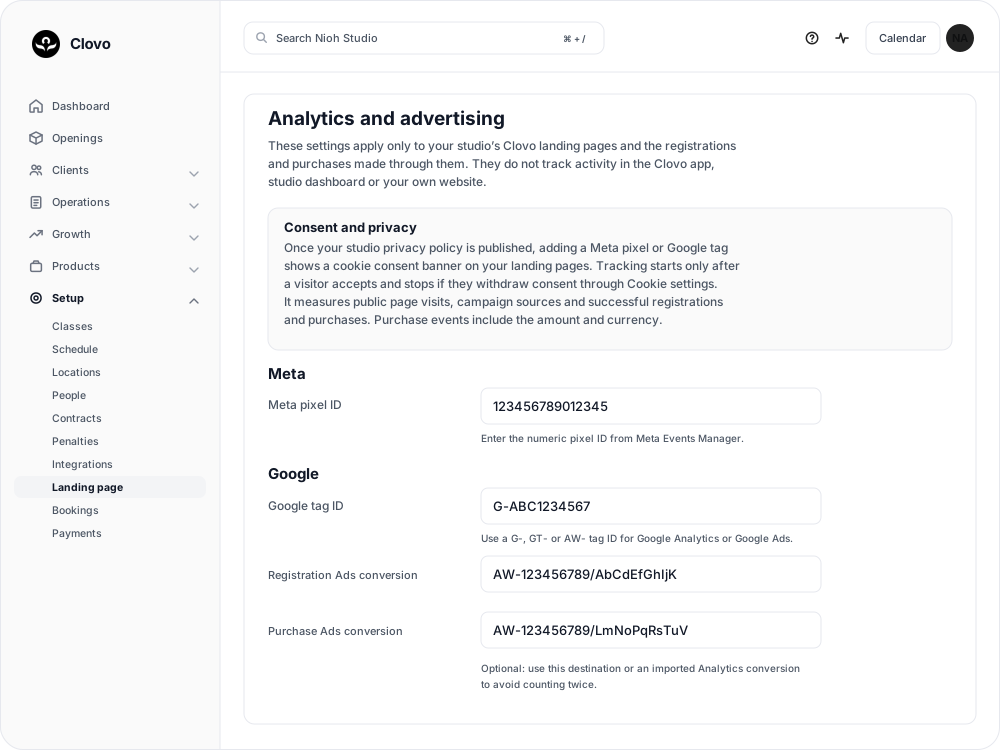
Understand what happens on your landing pages, with visitor choice built into the journey.
Connect your studio’s reporting account and publish the privacy wording your visitors need.
Registrations
Use the registration conversion destination to report completed account registrations.
Purchases
Purchase reporting follows a confirmed successful payment and includes amount and currency.
Campaign detail
Supported campaign parameters and ad click identifiers help distinguish campaign traffic.
One route per action
Choose a direct Ads destination or an imported Analytics conversion for each action to avoid duplicate reporting.
Set up in Clovo
You’ll need a Clovo studio owner login and access to the service you’re connecting.
Go to Setup → Landing page and scroll to Analytics and advertising. Use your studio’s intended reporting account and review the Consent and privacy notice.
Enter Google tag ID. For direct Ads reporting, fill Registration Ads conversion and/or Purchase Ads conversion with each action’s full AW-123456789/label destination.

Adapt the studio privacy policy to your business. Turn on I have reviewed this policy and want to publish it, then select Save changes.

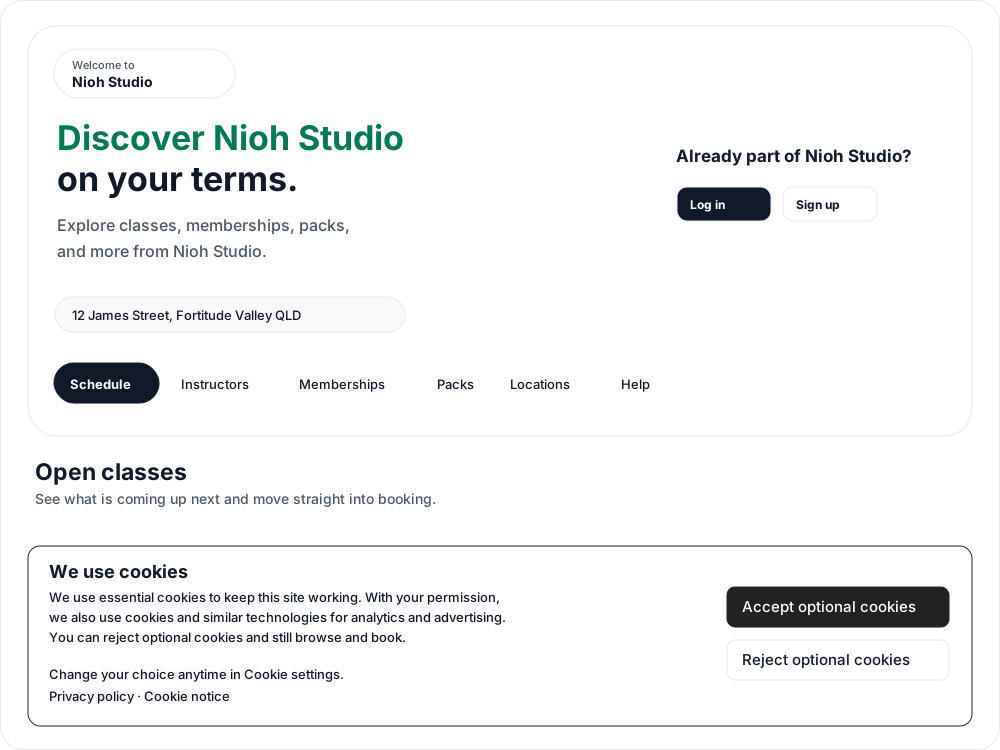
Open your published landing page while signed out. Choose Accept optional cookies for your test visit and check the matching provider account for activity.
Yours to adjust
Return to Setup → Landing page → Analytics and advertising to update or clear provider IDs. Visitors can revisit their choice through Cookie settings.
Common questions
Only after you save the provider ID, publish your studio privacy policy and the visitor accepts optional cookies.
No. These settings apply to Clovo landing pages and actions completed through them. They do not measure activity in the Clovo apps or on your own website.
Yes. Reject optional cookies keeps optional tracking off while visitors can still browse and book.
Visitors who reject optional cookies are not included. Browser privacy settings and blockers can also prevent measurement.
Yes. Google tag ID is required before you can save Ads conversion destinations. Each destination needs both its AW- ID and /label.
See which campaigns lead to completed registrations and purchases.
New to Clovo? See how pricing works. Need a hand? Contact Clovo support. Read the Google Ads setup guide.
Before connecting, read the Clovo privacy policy and terms of service.
Google Ads and its associated names and logos belong to their respective owners. Third-party names and logos identify services Clovo works with and do not imply endorsement.
Launch your studio today with no monthly fee — you only pay when your members pay you. Set up for free, with no card required.
Start free today