
Your account
Connect the Mailchimp account you use
Sign in to your studio’s Mailchimp account and approve the connection from Clovo.

 Branded Booking Apps
Let clients book, pay and join waitlists in your branded app.
Branded Booking Apps
Let clients book, pay and join waitlists in your branded app.
 Studio Management Dashboard
Manage schedules, clients, payments and more in one place.
Studio Management Dashboard
Manage schedules, clients, payments and more in one place.
 Landing Pages
Showcase classes and pricing on your own .clovo.app page.
Landing Pages
Showcase classes and pricing on your own .clovo.app page.
 Member Shop
Sell studio merchandise through the app your members use.
Member Shop
Sell studio merchandise through the app your members use.
 Client Records
Keep progress notes, forms and agreements securely together.
Client Records
Keep progress notes, forms and agreements securely together.
 Integrated Admin App
Manage your studio from the Clovo app, wherever you are.
Integrated Admin App
Manage your studio from the Clovo app, wherever you are.
 Website Add-ons
Add live schedules and ways to buy to your existing website.
Website Add-ons
Add live schedules and ways to buy to your existing website.
 Retention
Spot clients drifting away and reconnect before they leave.
Retention
Spot clients drifting away and reconnect before they leave.
 Clovo Kiosk
Turn a spare iPad into self check-in and a studio showcase.
Clovo Kiosk
Turn a spare iPad into self check-in and a studio showcase.
 Growth
Grow your studio with reporting, offers, reviews and referrals.
Growth
Grow your studio with reporting, offers, reviews and referrals.
Keep your studio’s client contacts ready for your next campaign.
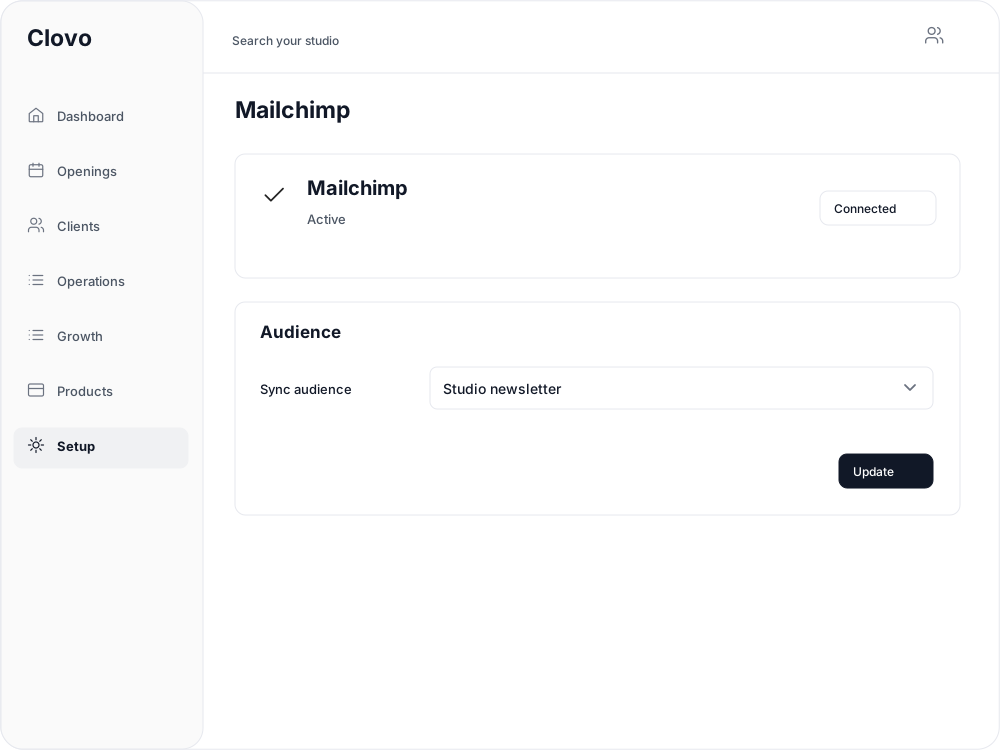
Keep client contact details in the audience you use to stay in touch.
Connect your account, review the audience and keep marketing permission at the centre.
Your account
Sign in to your studio’s Mailchimp account and approve the connection from Clovo.
Audience choice
Review Sync audience and select Update to save the destination for your client contacts.
Client details
Client contact details include email address, first name, last name and phone number where recorded.
Marketing permission
The connection adds existing clients who have opted in to marketing. It does not grant permission on their behalf.
Set up in Clovo
You’ll need a Clovo studio owner login and access to the service you’re connecting.
Go to Setup → Integrations. Find Mailchimp and select Connect.
Sign in to the Mailchimp account your studio uses and approve the connection. Clovo chooses an initial audience and adds existing opted-in clients as the connection completes.
Back in Clovo, choose the destination under Audience → Sync audience and select Update. If your account serves multiple businesses, contact Clovo support before connecting.

Open the selected audience in Mailchimp and check the contacts and their subscription status before sending a campaign.
Yours to adjust
Return to Setup → Integrations → Mailchimp → View integration to select another audience and update.
Common questions
You write and send newsletters and campaigns in Mailchimp. The integration connects your client contacts to the audience you choose.
Existing clients who have opted in to marketing. Connecting the account does not change their marketing permission.
Contact Clovo support before connecting if your account holds audiences for different businesses. Clovo chooses an initial audience and adds opted-in clients during connection; review the destination before sending.
Yes. Open View integration, choose a different Sync audience and select Update.
Keep your studio’s client contacts ready for your next campaign.
New to Clovo? See how pricing works. Need a hand? Contact Clovo support. Read the Mailchimp setup guide.
Before connecting, read the Clovo privacy policy and terms of service.
Mailchimp and its associated names and logos belong to their respective owners. Third-party names and logos identify services Clovo works with and do not imply endorsement.
Launch your studio today with no monthly fee — you only pay when your members pay you. Set up for free, with no card required.
Start free today