
One channel
You pick where alerts go
Choose the channel while you approve Clovo in your Slack workspace. Your studio connects one Slack channel at a time.

 Branded Booking Apps
Let clients book, pay and join waitlists in your branded app.
Branded Booking Apps
Let clients book, pay and join waitlists in your branded app.
 Studio Management Dashboard
Manage schedules, clients, payments and more in one place.
Studio Management Dashboard
Manage schedules, clients, payments and more in one place.
 Landing Pages
Showcase classes and pricing on your own .clovo.app page.
Landing Pages
Showcase classes and pricing on your own .clovo.app page.
 Member Shop
Sell studio merchandise through the app your members use.
Member Shop
Sell studio merchandise through the app your members use.
 Client Records
Keep progress notes, forms and agreements securely together.
Client Records
Keep progress notes, forms and agreements securely together.
 Integrated Admin App
Manage your studio from the Clovo app, wherever you are.
Integrated Admin App
Manage your studio from the Clovo app, wherever you are.
 Website Add-ons
Add live schedules and ways to buy to your existing website.
Website Add-ons
Add live schedules and ways to buy to your existing website.
 Retention
Spot clients drifting away and reconnect before they leave.
Retention
Spot clients drifting away and reconnect before they leave.
 Clovo Kiosk
Turn a spare iPad into self check-in and a studio showcase.
Clovo Kiosk
Turn a spare iPad into self check-in and a studio showcase.
 Growth
Grow your studio with reporting, offers, reviews and referrals.
Growth
Grow your studio with reporting, offers, reviews and referrals.
Send the staff alerts you choose to your team’s Slack channel.

Alerts for enquiries, bookings and purchases include an Open in Clovo link, so the follow-up is one tap away.
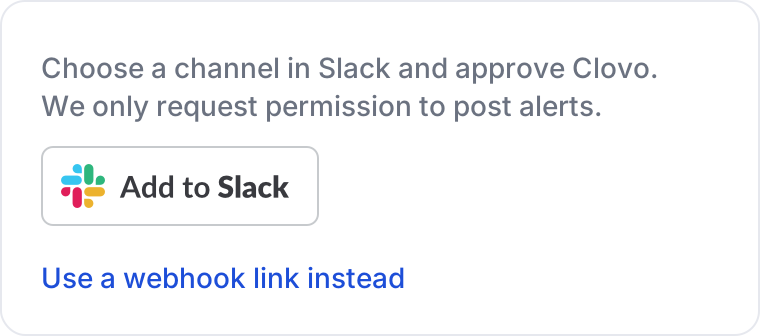
Clovo asks your Slack workspace for one permission: to post to the channel you choose.
One channel
Choose the channel while you approve Clovo in your Slack workspace. Your studio connects one Slack channel at a time.
Your choice
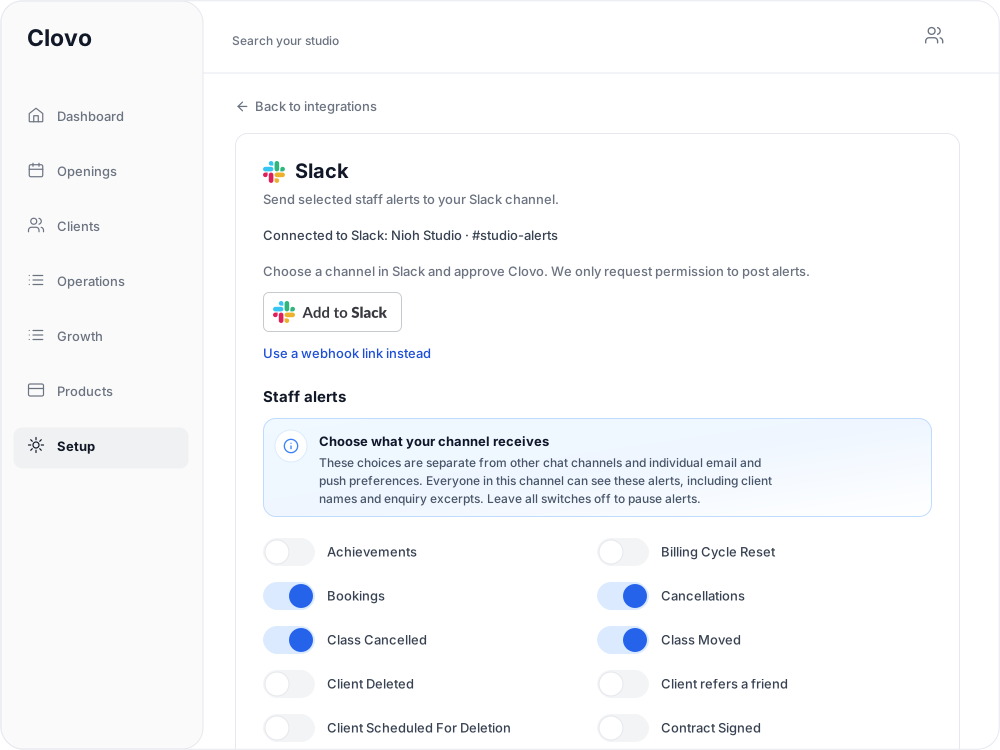
Choose from staff alerts such as Leads, Bookings, Cancellations and Payment Failed. Leave every switch off to pause.
Post only
Clovo requests permission to post alerts and nothing more. It never asks to read messages or add a bot to your workspace.
Alongside, not instead
Channel alerts sit beside each staff member’s own email and push preferences, never in place of them.
Set up in Clovo
You’ll need a Clovo studio owner login and permission to add apps to your Slack workspace.
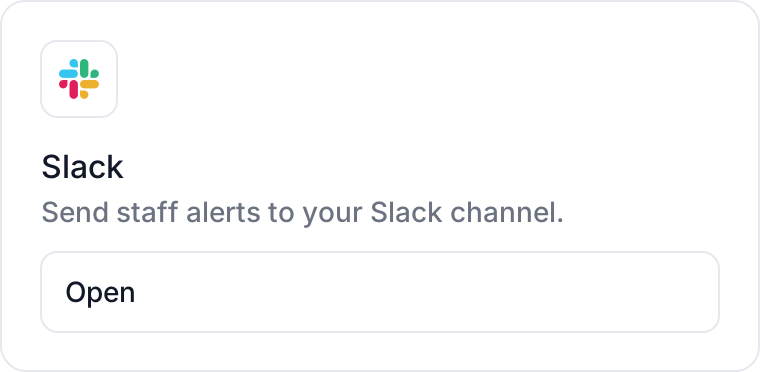
Sign in to Clovo and go to Setup → Integrations. On the Slack card, select Open.
Select Add to Slack, choose your workspace and the channel for your alerts, then approve. If your workspace needs approval for new apps, a Slack workspace admin can help.
Back in Clovo, you’ll see Slack connected. Choose your staff alerts and save settings. Switch on the alerts your team needs, then select Save settings.

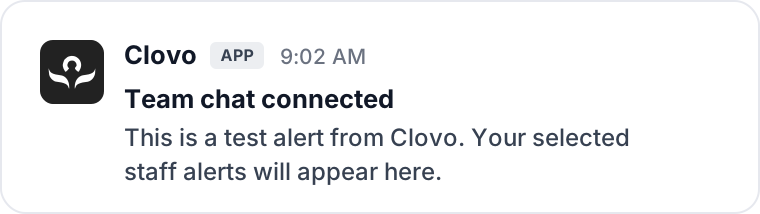
Select Send test alert, then open your channel. A Team chat connected message from Clovo confirms everything is working.
Yours to adjust
Return to Setup → Integrations → Slack to switch alerts on or off, send another test or disconnect.
Common questions
Post alerts to the one channel you choose. Clovo requests only the incoming webhook permission. It does not ask to read conversations or add a bot, and it discards the access token once the connection is made.
Everyone in the channel. Alerts can include client names and enquiry excerpts, so choose a channel whose members should see that information, such as a private channel for your studio team.
Any of your Clovo staff alerts, including Leads, Bookings, Cancellations, Purchase made, Trial started and Payment Failed. The channel keeps its own choices, separate from each staff member’s email and push preferences.
Studio owners. Only an owner can connect a channel, change which alerts it receives, send a test alert or disconnect.
To pause, switch every alert off and select Save settings. To stop, select Disconnect, which removes your studio’s connection. A Slack workspace admin can also remove the Clovo app from your workspace.
The Slack screen in Clovo shows that an alert could not be delivered, with the reason, so you can reconnect or choose another channel. Your team’s email and push alerts are not affected.
Yes. Select Use a webhook link instead and paste the incoming webhook link for your channel. Clovo stores the link securely and never displays it again.
Connect from Setup in Clovo in a few minutes.
New to Clovo? See how pricing works. Need a hand? Contact Clovo support.
Before connecting, read the Clovo privacy policy and terms of service.
Slack and the Slack logo are trademarks and service marks of Slack Technologies, LLC, registered in the U.S. and in other countries. Clovo is integrated with Slack but is not produced, endorsed or supported by Slack.
Launch your studio today with no monthly fee — you only pay when your members pay you. Set up for free, with no card required.
Start free today