
Your Stripe account
Your studio receives the funds
Every card and bank payment runs through your own Stripe account.

 Branded Booking Apps
Let clients book, pay and join waitlists in your branded app.
Branded Booking Apps
Let clients book, pay and join waitlists in your branded app.
 Studio Management Dashboard
Manage schedules, clients, payments and more in one place.
Studio Management Dashboard
Manage schedules, clients, payments and more in one place.
 Landing Pages
Showcase classes and pricing on your own .clovo.app page.
Landing Pages
Showcase classes and pricing on your own .clovo.app page.
 Member Shop
Sell studio merchandise through the app your members use.
Member Shop
Sell studio merchandise through the app your members use.
 Client Records
Keep progress notes, forms and agreements securely together.
Client Records
Keep progress notes, forms and agreements securely together.
 Integrated Admin App
Manage your studio from the Clovo app, wherever you are.
Integrated Admin App
Manage your studio from the Clovo app, wherever you are.
 Website Add-ons
Add live schedules and ways to buy to your existing website.
Website Add-ons
Add live schedules and ways to buy to your existing website.
 Retention
Spot clients drifting away and reconnect before they leave.
Retention
Spot clients drifting away and reconnect before they leave.
 Clovo Kiosk
Turn a spare iPad into self check-in and a studio showcase.
Clovo Kiosk
Turn a spare iPad into self check-in and a studio showcase.
 Growth
Grow your studio with reporting, offers, reviews and referrals.
Growth
Grow your studio with reporting, offers, reviews and referrals.
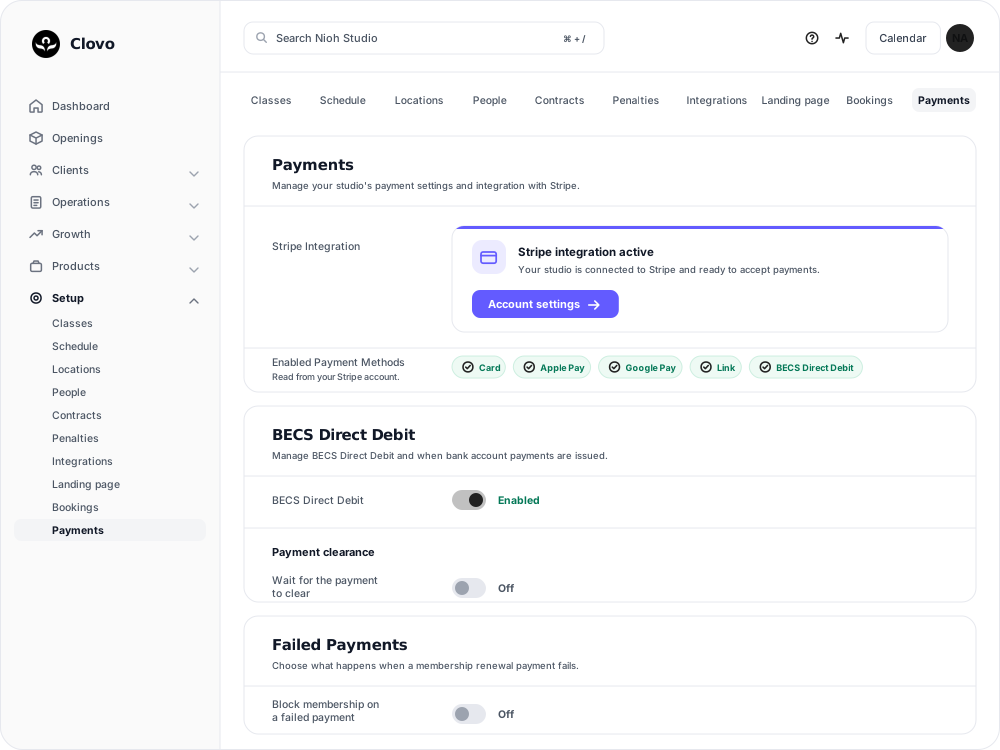
Clovo never holds your money. Stripe processes your payments and pays out to your bank.
Keep everyday studio payment settings in Clovo and manage your Stripe account when you need it.
Your Stripe account
Every card and bank payment runs through your own Stripe account.
Client payments
Clovo displays the payment methods reported by Stripe. Manage enabled methods in your Stripe account.
Australian bank payments
Control whether Australian bank-account payments are offered at checkout, with payment clearance settings in Clovo.
Day-to-day control
Invoice wording, failed-payment settings and individual client refunds are managed in Clovo.
Set up in Clovo
You’ll need a verified studio and email address before connecting Stripe.
Your studio must be verified by Clovo and your own email address verified before connecting Stripe.
Go to Setup → Payments and select Connect with Stripe.
Follow Stripe’s steps to create or link your account and supply any required business details or bank information. If interrupted, choose Finish setup in Clovo.
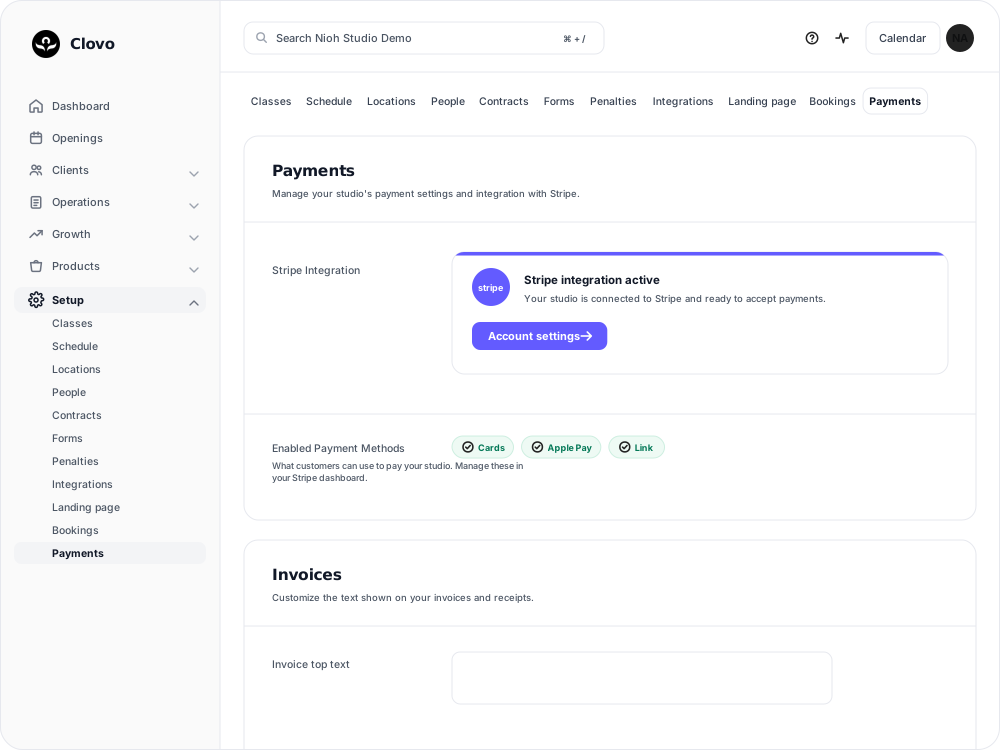
Look for Stripe integration active, then review the available payment methods and your payment settings.
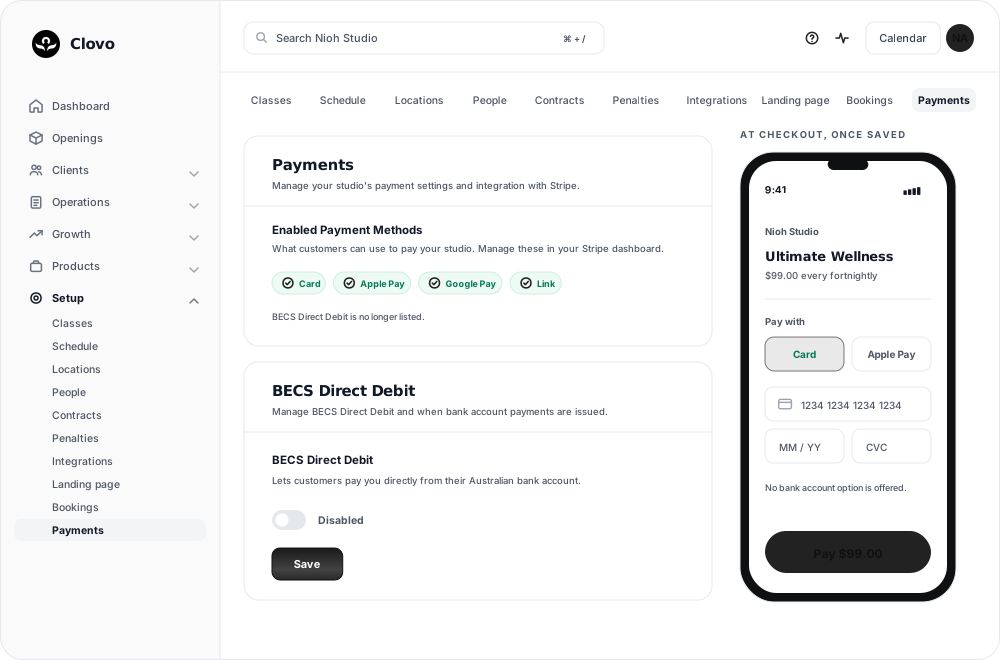
Yours to adjust
Return to Setup → Payments to review your connection, invoice settings, BECS Direct Debit and failed-payment preferences.
Common questions
Your payments run through your own Stripe account. Stripe pays out to your bank; Clovo never holds your money.
Your studio and your email address must be verified. Use Resend verification email if prompted, or contact Clovo support about studio approval.
Manage your bank account and payout schedule in Stripe. Account settings in Clovo opens your Stripe account details.
Onboarding has started but is incomplete. Select Finish setup to return to Stripe and provide the remaining details.
Take payments through your own Stripe account.
New to Clovo? See how pricing works. Need a hand? Contact Clovo support. Read the Stripe setup guide.
Before connecting, read the Clovo privacy policy and terms of service.
Stripe and its associated names and logos belong to their respective owners. Third-party names and logos identify services Clovo works with and do not imply endorsement.
Launch your studio today with no monthly fee — you only pay when your members pay you. Set up for free, with no card required.
Start free today